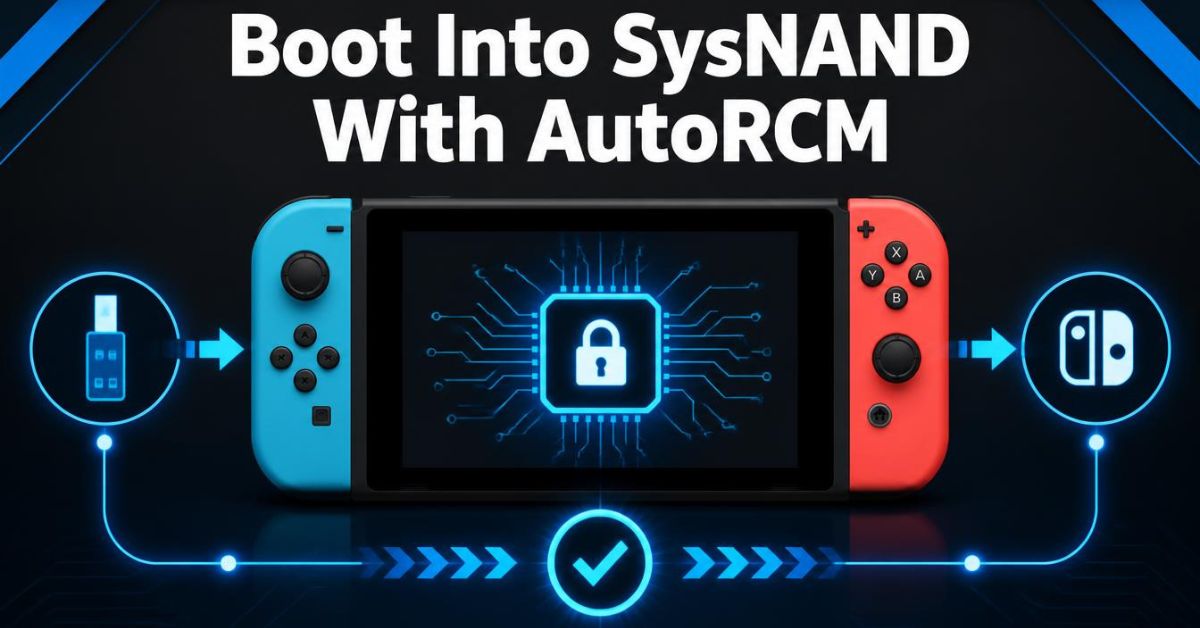
If you use a Nintendo Switch with AutoRCM enabled, the normal startup process is different from a standard console. Instead of booting directly into the Nintendo Switch operating system, the console enters Recovery Mode (RCM) first. A compatible payload or bootloader can then be used to start the system from sysNAND.
Understanding this process is important because AutoRCM and sysNAND serve different purposes. AutoRCM controls how the console starts, while sysNAND refers to the Switch’s internal system storage.
Learn how AutoRCM works with Switch sysNAND, how to boot sysNAND through Hekate, and what to check when AutoRCM is not working.
What Is SysNAND?
SysNAND, also called sysMMC, refers to the Switch’s internal NAND storage. It contains the main system software and other important console data.
It is different from emuNAND, or emuMMC, which is a separate copy of the system environment stored on the microSD card.
In simple terms:
- SysNAND/sysMMC: The Switch’s internal system storage.
- emuNAND/emuMMC: A separate system environment normally stored on the microSD card.
- RCM: A low-level recovery mode used before the normal operating system starts.
- AutoRCM: A software modification that makes the console enter RCM automatically during startup.
- Hekate: A bootloader that can provide options for launching different system configurations.
Hekate supports boot entries for stock sysMMC, CFW sysMMC, and emuMMC configurations.
What Is AutoRCM?
AutoRCM is designed to make the Switch enter RCM without manually using a physical method each time.
Normally, a compatible Switch must enter RCM before a payload can be injected. With AutoRCM enabled, the console automatically enters that state during startup.
This can make the process more convenient, but it also changes the normal boot behavior.
One important point is that AutoRCM does not automatically mean the console will boot into sysNAND. AutoRCM only gets the console into RCM. A payload such as Hekate can then provide the option to launch the desired system configuration.
The Hekate project includes an AutoRCM tool as well as boot options for sysMMC and emuMMC.
How to Boot Into SysNAND With AutoRCM
If AutoRCM is already enabled and your Switch is compatible with the setup, the general process is straightforward.
1. Start the Switch
Press the power button normally.
With AutoRCM enabled, the Switch may not show the usual Nintendo startup process. Instead, it enters RCM.
2. Send a Compatible Payload
Because the console is in RCM, a compatible payload needs to be sent to the Switch.
Hekate is commonly used as the bootloader for this purpose. Once Hekate loads, it provides a graphical interface with different boot and maintenance options.
The official Hekate project documents support for launching stock sysMMC, CFW sysMMC, and emuMMC configurations.
3. Open the Launch Menu
After Hekate loads, open the Launch section.
The exact names can differ depending on your configuration and Hekate version.
Look for an entry intended for Stock, SysMMC, or another configuration that specifically targets the internal system.
4. Select the Appropriate SysNAND Entry
Choose the entry that is configured to launch your sysNAND.
If your goal is the normal stock system, use the stock/sysMMC configuration rather than an emuMMC entry.
Hekate’s configuration supports separate boot entries, which means the available options depend on the hekate_ipl.ini configuration on the SD card.
5. Allow the System to Start
After selecting the appropriate entry, Hekate passes control to the selected system configuration.
If everything is configured correctly, the Switch should continue into the system stored on its internal NAND.
AutoRCM vs. SysNAND: What’s the Difference?
These terms are sometimes confused because they are often used together.
- AutoRCM is a boot method.
- SysNAND is a storage/system environment.
Therefore, you can think of the process like this:
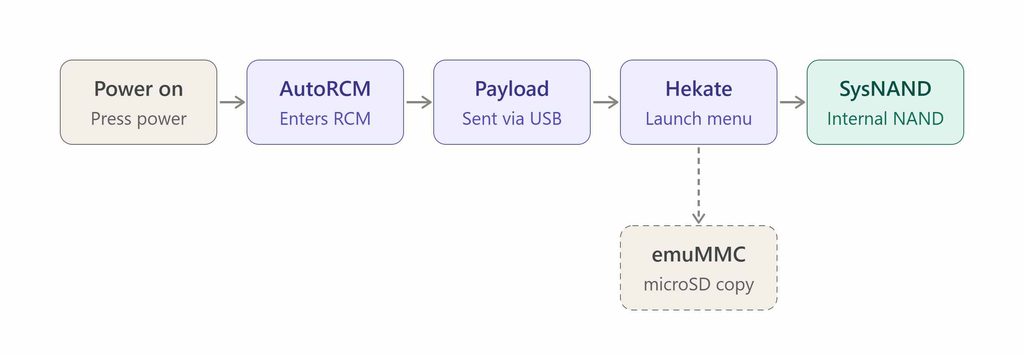
Power on → AutoRCM → RCM → Payload/Hekate → SysNAND
This is different from saying that AutoRCM itself boots sysNAND.
The bootloader decides what system configuration to launch after RCM has been entered.
SysNAND With AutoRCM Not Working
If the Switch enters RCM but does not reach sysNAND, there are several things to check.
Check Whether the Payload Is Being Sent
AutoRCM does not remove the need for a payload.
If the Switch remains on a black screen after starting, confirm that your payload-sending method detects the console and successfully sends the payload.
If Hekate never appears, the problem may be with the payload, USB connection, computer driver, SD card files, or the console’s RCM compatibility.
Check the Hekate Files
Make sure the Hekate files on the microSD card match the version you are using.
The current Hekate documentation includes the bootloader directory and payload files required for its normal operation.
An incomplete or incorrectly placed bootloader folder can prevent Hekate from loading correctly.
Check the Launch Configuration
If Hekate opens but sysNAND does not start, check the selected Launch entry.
Your hekate_ipl.ini file controls boot entries and their configuration. A wrong entry can point to emuMMC, CFW, or another configuration instead of the intended sysMMC environment.
Check the microSD Card
A damaged, incorrectly formatted, or improperly prepared microSD card can also cause boot problems.
The Nintendo Homebrew Switch Guide recommends backing up important microSD data before making major changes and explains the expected Hekate file structure.
Can You Turn Off AutoRCM?
Yes. AutoRCM can be disabled through a compatible Hekate setup.
However, users should understand what changes when AutoRCM is disabled. The Switch will return to its normal hardware boot behavior, so entering RCM may require the appropriate physical method depending on the console and setup.
Hekate-based documentation provides an AutoRCM enable/disable option under its tools.
Do not disable AutoRCM simply because the console appears to remain on a black screen. First determine whether the problem is actually related to AutoRCM.
Important AutoRCM Battery Warning
One of the most important things to understand about AutoRCM is that a console left in RCM can continue consuming battery power.
If the Switch does not receive a payload after entering RCM, it may appear to be powered off even though it has not completed a normal shutdown.
The Nintendo Homebrew documentation specifically warns that systems using AutoRCM may require a proper power-off procedure to avoid remaining in RCM and slowly draining the battery.
If the console has been sitting in RCM for a long time, charge it before assuming that the hardware has failed.
Is AutoRCM Safe?
AutoRCM changes part of the console’s boot configuration, so it should not be treated as a completely risk-free setting.
Before changing anything related to sysNAND, it is wise to understand your console model, current setup, bootloader configuration, and available backups.
Most importantly, do not enable AutoRCM blindly on an incompatible or patched console. Older community documentation specifically warns against enabling AutoRCM on consoles that cannot successfully use the required RCM payload method.
If you are unsure about your Switch model or exploit compatibility, verify that information before making changes.
SysNAND and emuNAND: Which One Are You Booting?
A common source of confusion is selecting the wrong Launch option.
If you want the internal system, you need a configuration that targets sysMMC/sysNAND.
If you select an emuMMC entry, the Switch will instead use the system environment stored on the microSD card.
Hekate supports both types of environments, so carefully check the name and configuration of each Launch entry before selecting it.
Final Thoughts
Booting into sysNAND with AutoRCM is easier to understand when the roles of each component are separated. AutoRCM places the Switch into RCM, a payload loads a bootloader such as Hekate, and Hekate can then launch the appropriate sysNAND/sysMMC configuration.
If sysNAND with AutoRCM is not working, start with the basics: confirm that the console reaches RCM, verify that the payload is successfully sent, check the Hekate files and boot configuration, and make sure the microSD card is working correctly.
RELATED ITEM: Vimms Lair Unexpected Browser Error